Connect ClashMi to Voguesly on iPhone: sign in with 69v
ClashMi is a third-party client. Enter 69v to open Voguesly’s own sign-in page, then import your account’s subscription, including nodes and routing rules. The client is free; Voguesly service plans are purchased separately.
Follow the iPhone screens
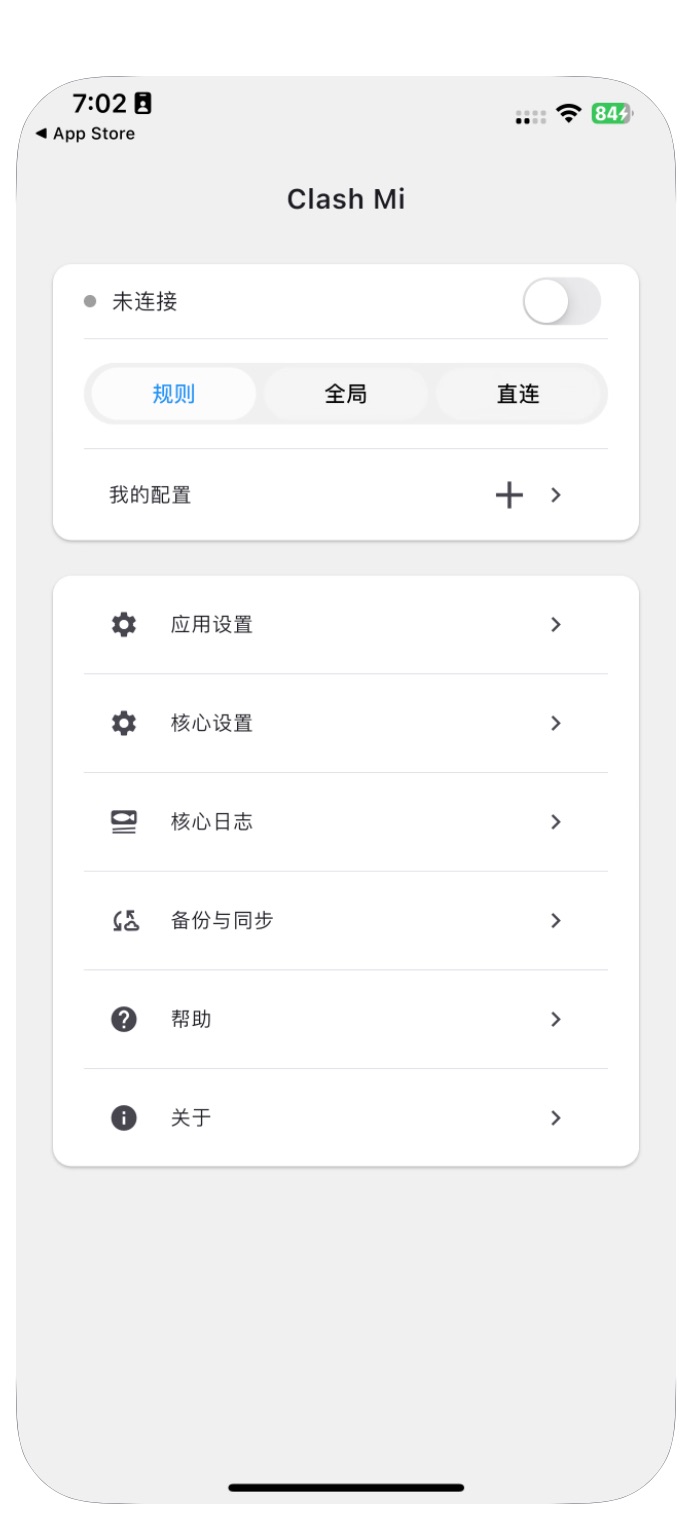
Tap + next to My Profiles
Install Clash Mi from the App Store, published by SUPERNOVA NEBULA LLC. Stop any other client currently managing the phone’s network before testing.
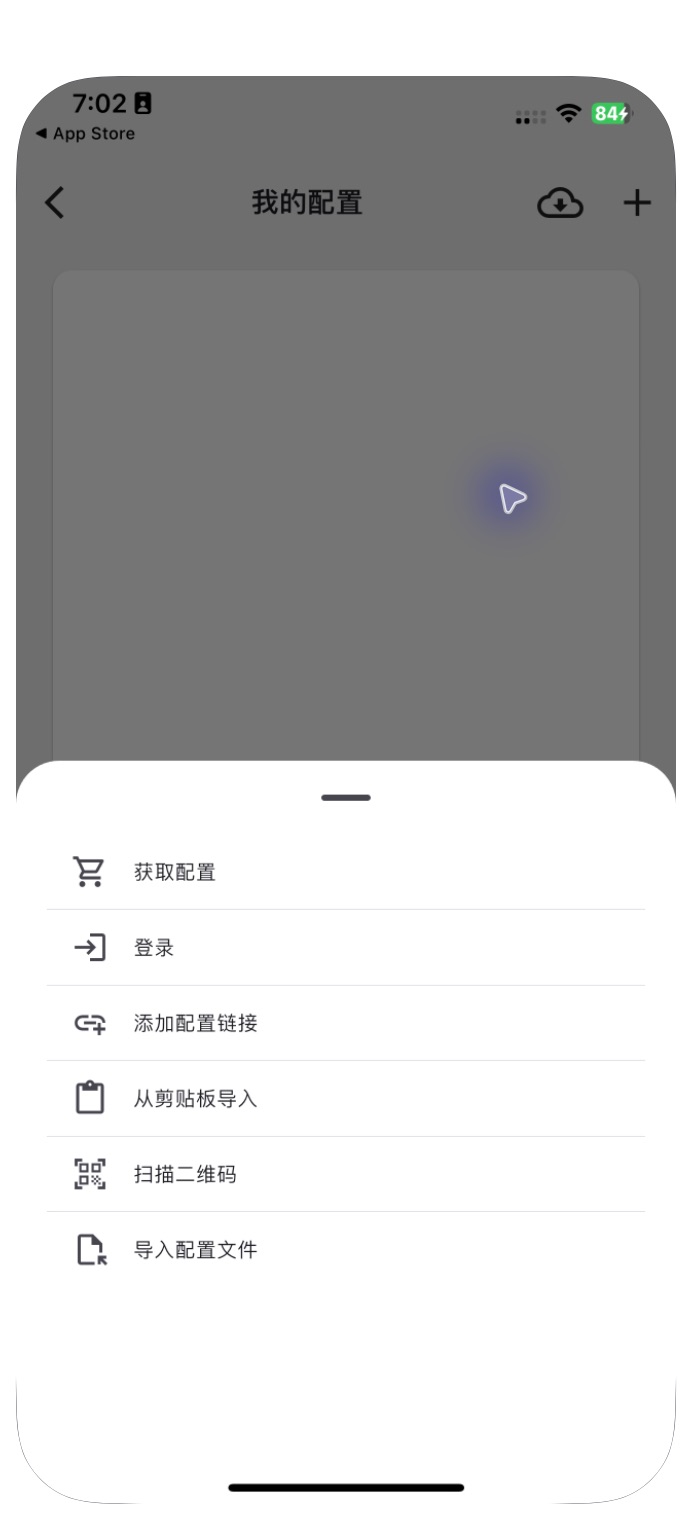
Choose Sign in
Choose the sign-in option. Do not put your password in a subscription URL or use a stranger’s subscription.
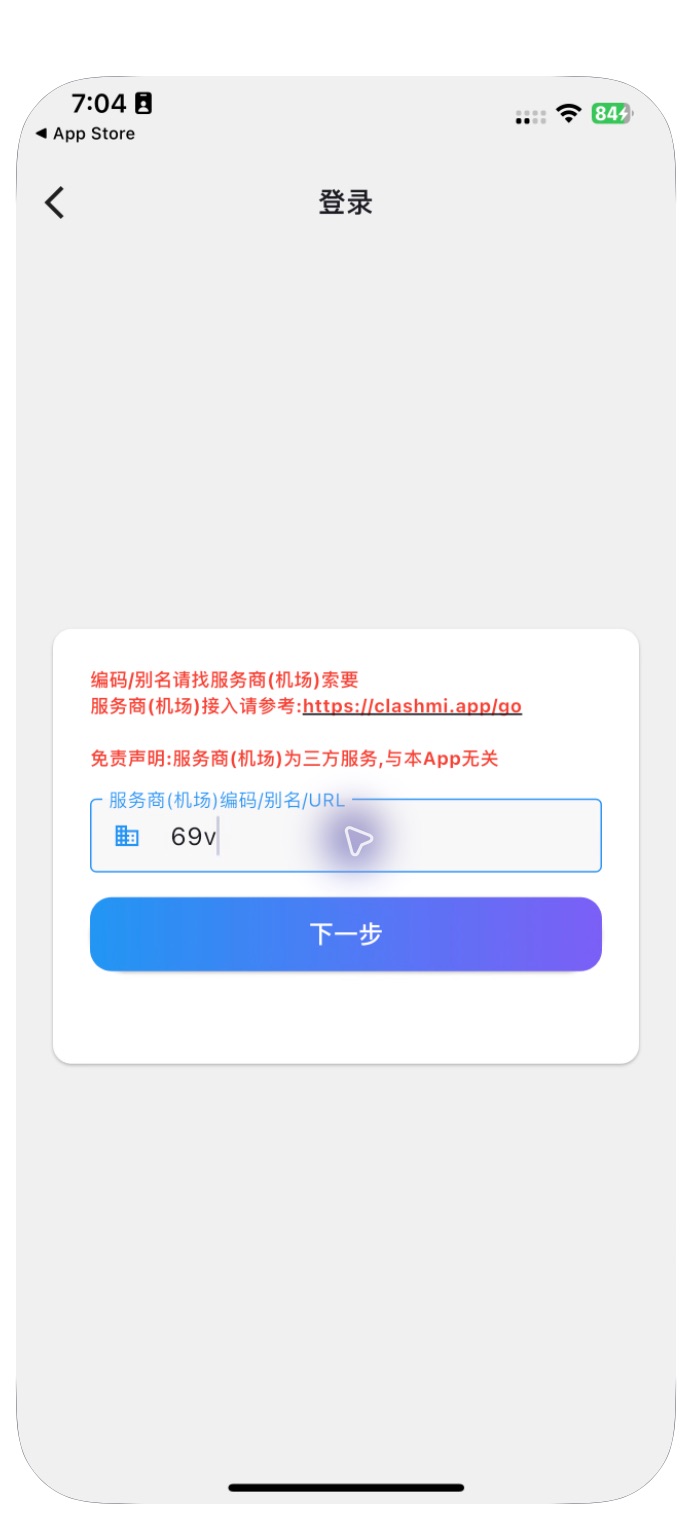
Enter provider code 69v
Enter the digits 6 and 9 followed by v, then tap Next. The account form opens on a separate Voguesly web page.
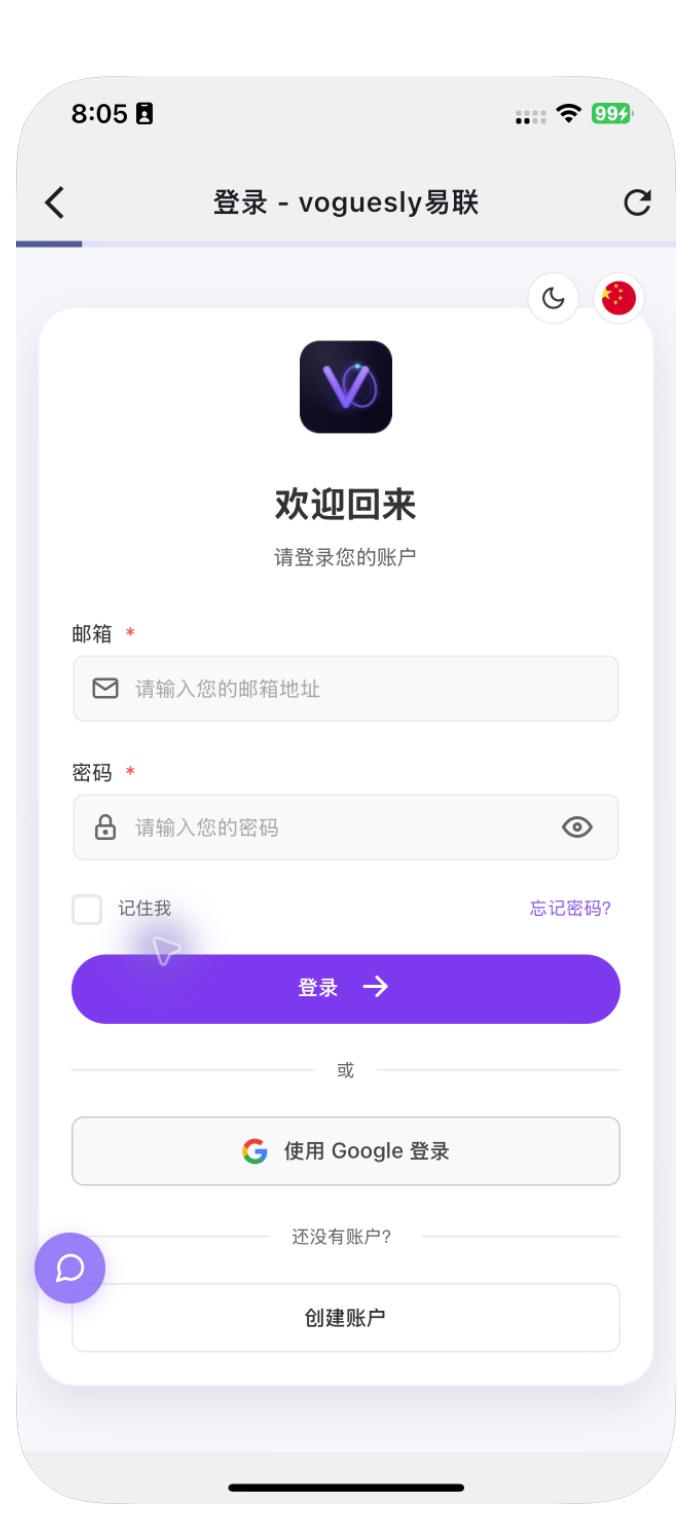
Sign in on the Voguesly page
Use your own Voguesly email and password. Existing accounts do not need to buy another plan. Keep passwords, verification codes and subscription URLs private.
Check that Voguesly appears
The imported profile shows usage and expiry information. A visible profile confirms import; avoid adding the same profile repeatedly.
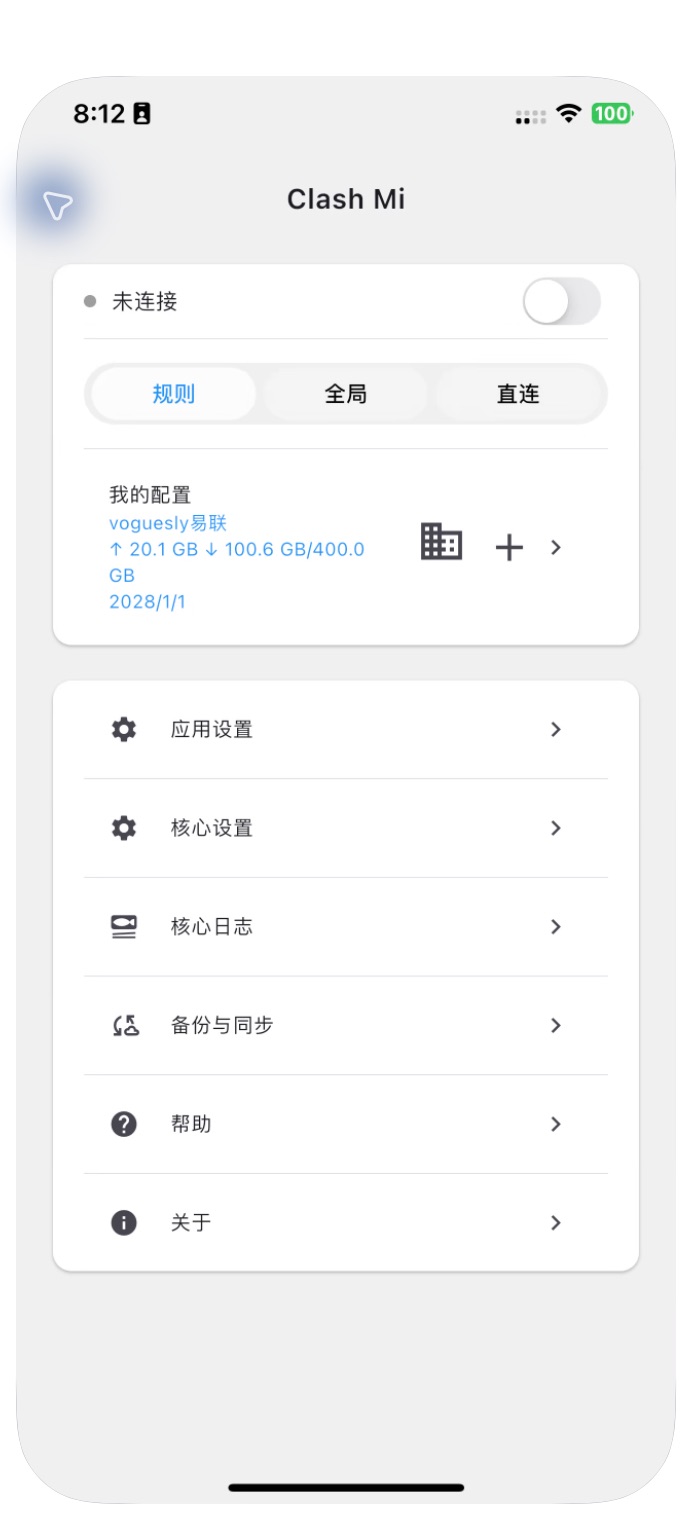
Keep Rule mode and connect
Review and allow the system configuration prompt on first use. After connecting, open the intended website to check access. A green switch alone does not prove every service works.
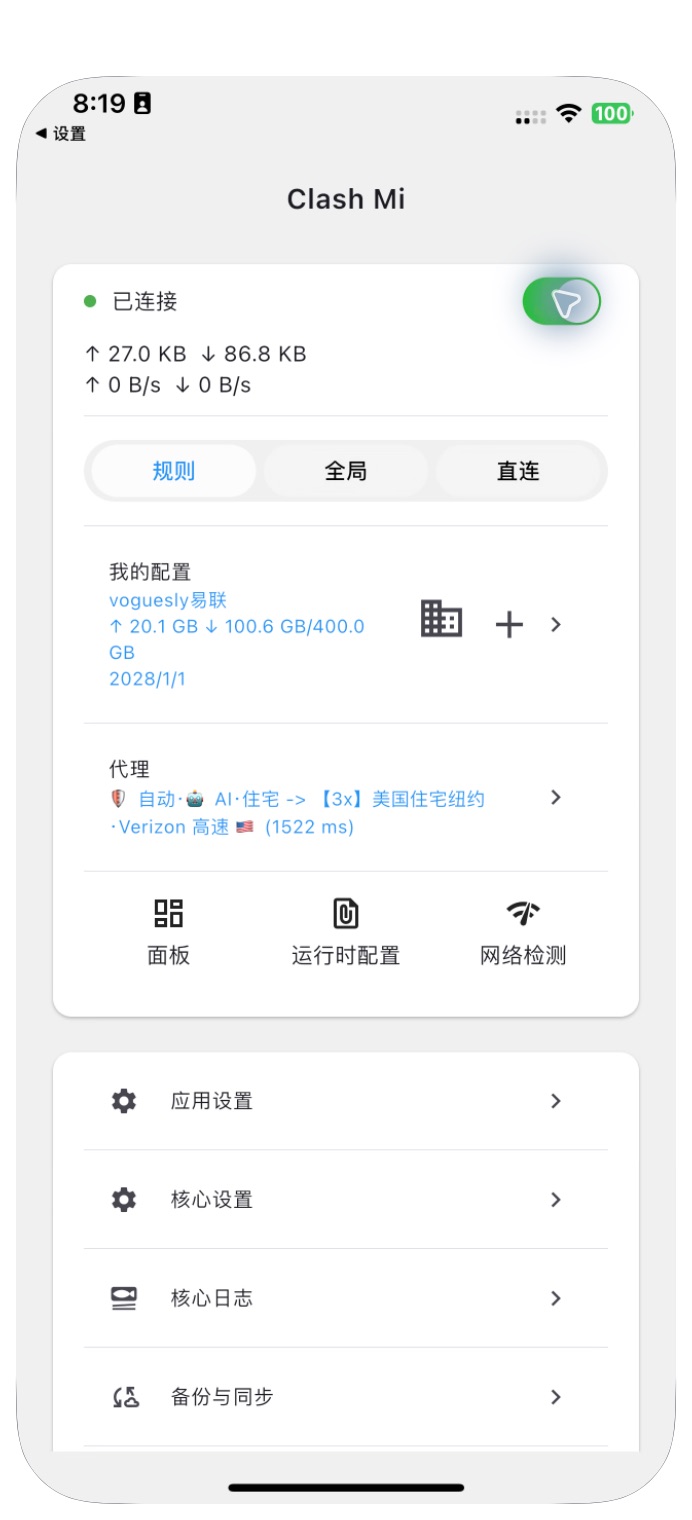
How do I update the subscription?
Open My Profiles, tap ⋮ beside the Voguesly profile, then Update. Check the intended website afterward. Automatic updates follow the client’s schedule; they are not instant server push. “< 1 h” shows time since the last update, not an hourly update guarantee.
Mainland China, Hong Kong / Macao, or Taiwan?
Choose the device’s actual network environment in the panel’s Network and Routing section. Payment, display language and ad source do not select routing automatically. The 69v flow imports the account’s default subscription. For a regional version, follow the regional guide and import a complete profile, not just separate rules or a different node.
Mainland China, Hong Kong / Macao, or Taiwan?
Does 69v open a purchase page or 404?
Close the current sign-in page and enter again. If the client retains an old provider entry, quit and reopen only ClashMi and retry 69v. If it still fails, use the panel import option and contact support; do not register or pay repeatedly.
Rule, Global, or Direct?
Use Rule for normal operation. Global and Direct change traffic handling and cannot verify regional routing. AI, banking and unmatched traffic use separate policy groups; changing one does not change every group.
Why can a check fail while a website opens?
A check may use a different request path or resolver. Record the exact site, client version and error. One failed probe does not establish account eligibility or the service’s overall status.
Is Karing the same client?
They are separate clients from the same team. Do not assume they share a core or accept interchangeable full configurations. This page verifies only the ClashMi iPhone flow.
Need help connecting?
Tell support your client version, network region, import method and the exact site that fails. Hide email addresses, subscription links and QR codes in screenshots.
Screenshots use an internal test account; quota and expiry are examples. Device check on 2026-10-31: ClashMi 1.0.31.1703, mihomo 1.19.32. Sign-in, own-account import, policy groups and actual HTTPS access were checked. Complete regional routing, IP-change recovery and other devices still require separate validation.