Voguesly 1.0.1 user guide
Choose your device for illustrated steps to install, sign in, connect and choose a route. The 1.0.1 beta is available as a manual download.
Open the 1.0.1 downloads View the 1.0 guide
Choose your device
For iPhone or iPad, see the ClashMi guide.
What changed in 1.0.1
Change routes and view entries
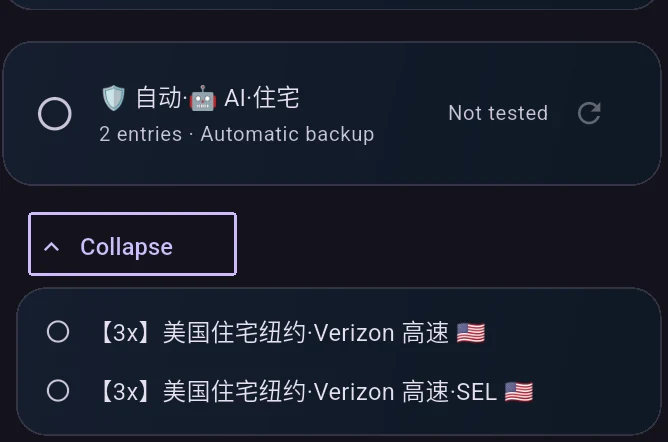
The home screen puts the AI group first, followed by Other traffic and Banking. Dedicated services follow their group rules. When Other traffic says it uses the same exit as the AI group, its target is the AI group. With a separate selection, it shows its own route. Some subscriptions show one combined Residential browsing card.
Select Change route. Choose the traffic group, select a route, and then apply it. A selection stays pending until applied. Back returns to Connect. Recently applied routes are shortcuts for the current group and still need to be applied.
For a multi-entry route, View entries expands the available entry details, including the preferred and backup entries where applicable. This list is read-only. The app marks an active entry when the connection reports one. A delay result applies to that test. 3× and 5× are data-metering multipliers.
Read the connectivity checks
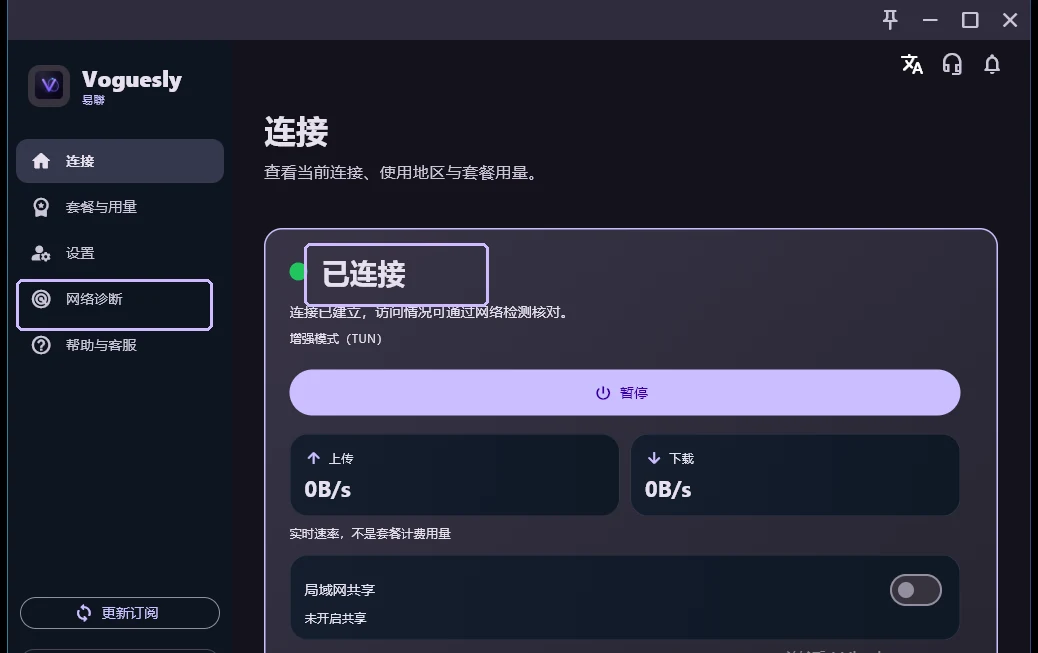
On desktop, open Network diagnostics in the sidebar or follow the connectivity card. A refresh on the same route preserves the last valid result and its time; one timeout or a cancellation does not immediately change the result. Retest gray or expired results and open the service. Test all on the route screen checks the current group and does not change routes.
Reachable means the network check succeeded. Open the service to verify sign-in, account entitlements or playback.
Update your subscription and rules
Update subscription refreshes official routes and rules. If the current entry fails, try updating once; the app attempts to fetch the official subscription directly first. It keeps a valid matching route when possible. For app updates, use the official download page. Use Connection and routing → Extra rules to set how a specific site should be routed.
LAN sharing is off by default. Turn it on only if another trusted device you own on the same network needs to use this computer’s proxy.
Plan and usage
The device limit is how many devices the plan allows to connect at once. Upload and download cards show live speeds. Check the remaining allowance under Plan and usage. Open Reset and extra data to review prices and eligibility.
Reset within the current cycle clears current usage while keeping the expiration date. Current-cycle add-ons are removed.
Start a new cycle today is available when your account is eligible. Review the checkout terms. If still eligible at activation, the new cycle begins at activation.
Language and support
On desktop, the top-right controls open language selection, support and announcements. On phones, use the Help tab. When reporting an issue, include your OS, app version, time and steps. Preview logs first. Hide account details, subscription links, codes and public IPs before sharing screenshots.
1.0 archive
If you still use 1.0, follow the matching archived guide. The rollback section of the download page holds the latest 1.0 package for each platform. Save sign-in details and settings before rolling back. If Android blocks a downgrade, check whether uninstalling would erase local data.